

mobster with no command opens the terminal UI. You type a task, watch each step happen, answer approvals, and keep a history of what ran. It runs the same runtime as mobster serve and Mobster for Mac, so a task behaves the same way in all three.
The screen
From top to bottom:- Transcript. Each task starts with your request after
›and, when needed, the app it uses. Each step appears below it with an action and target, such asTapped “Send”. The current step shows a turning mark and brighter text. When the task ends, the outcome appears below the steps:✓with the result (Replied to Sofia Reyes.), or✗ Couldn't finishwith the reason, followed by the step count, time and cost. - Phone. On terminals 110 columns or wider, the phone sits beside the transcript.
ctrl+sshows or hides it at any width. In terminals that draw images (kitty and Ghostty through the kitty graphics protocol, iTerm2, WezTerm and others through sixel) it is the real screenshot. Everywhere else (next release) it is the screen as Mobster read it: the app, the title bar, and one line per row of the accessibility tree, with values on the right, switches asonoroff, and the element the current step acts on marked with❯. The text view appears once a task has read a screen.MOBSTER_PHONE_VIEW=textalways uses it, andMOBSTER_PHONE_VIEW=imageasks any terminal whether it can draw images. - Input. The input sits between two rules. On the right,
in Messagesshows the app for the next task when your request does not name one. When an action needs your approval, the card replaces the input (see Approvals). - Status line. It sits under the input. Between tasks, the left side shows the phone and model; the right side shows the mode (
⏸ ask before actingor⏵⏵ full access), the(shift+tab)hint and the? keyshint. During a task, the status line showsWorking, elapsed time, the cost so far when there is one (2¢oron your plan),esc to stop, the mode and the phone. During approval, it showsWaiting for you. A spend cap appears after you set one. In a narrow terminal, the mode shortens to⏸ askor⏵⏵ act.
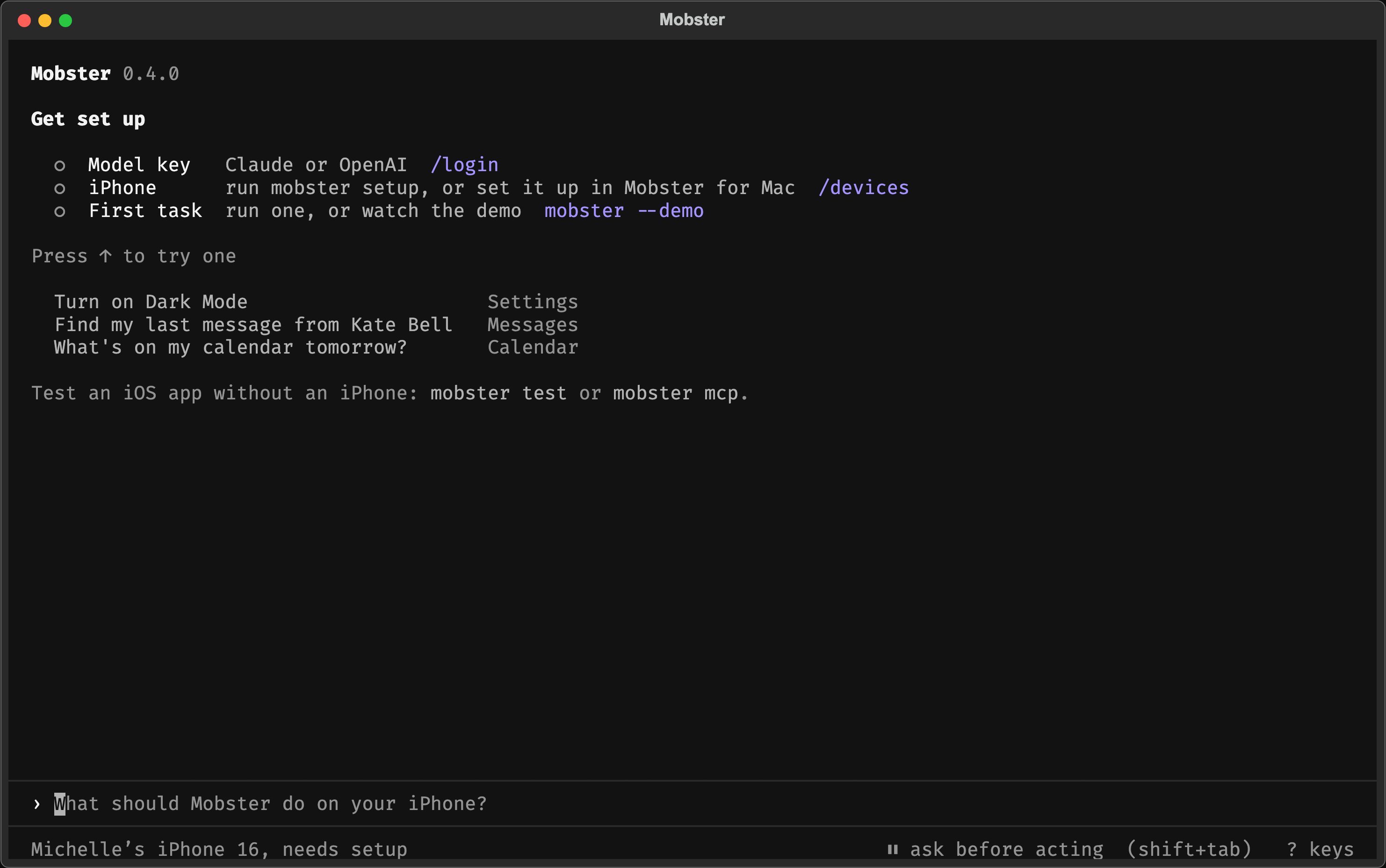
↑ puts one in the input, and they step aside while you type. The line under them names the commands that test your app: mobster test and mobster mcp install. If you still need a key, an iPhone or a first task, Get set up appears first.
Marks on a step:
A completed task shows
✓ in the outcome; its final check is not a separate step.
Press ctrl+o to see each step’s phases below its line, with the step number, confidence and duration: observe (screen contents and read time), decide (action, target and confidence), verify (whether the action passed) and act (what the phone did).
Choosing the app
Every task runs in one app. Mobster opens the app first, then works inside it. It picks the app like this:- The app you chose with
@in the prompt (@settings open About) or with/app. An@wordthat names no app, such as a handle in “Follow @nasa”, stays in the task. - An app the task opens or works in, such as “Open Settings” or “Find my boarding pass in Wallet”.
- For a task that starts with “Text”, “Message”, “Email”, “Call”, “Remind me” or “Take a note”:
- the channel the task names: “Message Sam on WhatsApp”;
- else another app, when it is who or what the task calls or messages: “Call an Uber to the airport”, “Message my Airbnb host”, “Text the DoorDash driver”. The ride, the host and the driver are reached in that app;
- else the app the opening word means, such as Messages or Mail. The rest of such a task is what to say, so “Message Sam about the camera settings” runs in Messages, and “Email the notes to Sam” in Mail.
- Any other app your task names, such as “Search YouTube for cat videos”. A name that is also an everyday word counts only when the task clearly means the app: “Find my boarding pass” names no app, while “Find my iPhone” and “Check Find My for my keys” run in Find My.
- An app the task’s other opening words point to: “Search for” runs in Safari and “Play” in Music. Settings words such as “Wi-Fi” or “Accessibility” anywhere in the task mean Settings.
- The app of your last task.
in Messages), unless your words name the app. The list covers the built-in apps, plus every app installed on a USB iPhone.
Approvals
In “Ask before acting”, the default, Mobster stops before a tap or submit that can commit something: a control labelled Send, Buy, Post, Delete, Submit and the like, a submit in a task whose words are a side effect, or an action the model scores as a likely side effect. It also stops when its own action check cannot tell whether an action matches your request. The card replaces the input under aNeeds you rule and shows the question, exact text and choices:
y,1orenteron the highlighted choice approves that action. If it appears again in the same task after the screen changes, approval is not requested again.- While open, the card replaces the input. Answer the card before you type anything else.
n,2orescdeclines it. The task ends asDeclined, and nothing is sent. The prompt then suggests you say what to do instead, and↑brings back the task to edit.- If nobody answers in 10 minutes, the task ends as
Approval expired. Time spent waiting does not count against the task’s time limit.
y allows them for this task, a (Always allow) keeps them for later tasks, and n or esc keeps every one of them shut and ends the task (Apps).
The terminal bell rings when a card appears (--no-bell turns it off). A repeated action over a list, such as liking every matching post, asks once before it starts, with a choice for items Mobster cannot judge.
shift+tab switches between “Ask before acting” and “Full access” (Settings › Safety’s modes; the status line shows the mode). It applies from the next task and is saved to your env file when you have one (--env-file or $MOBSTER_ENV_FILE), as Mobster for Mac saves its settings.
Keys
Stopping takes effect at the next safe point, after the action in flight. Mobster does not undo actions that already happened.
Commands
Type/ to see the list. It filters as you type, and tab or enter picks one.
History and resume
Every task the terminal UI runs is saved in its journal, with its steps and outcome.ctrl+r or /history lists them newest first, and you can type to filter. Opening one shows its transcript and puts its request back in the prompt, so enter runs it again. From a shell, mobster history lists them and mobster --resume ID opens one (--resume alone opens the latest).
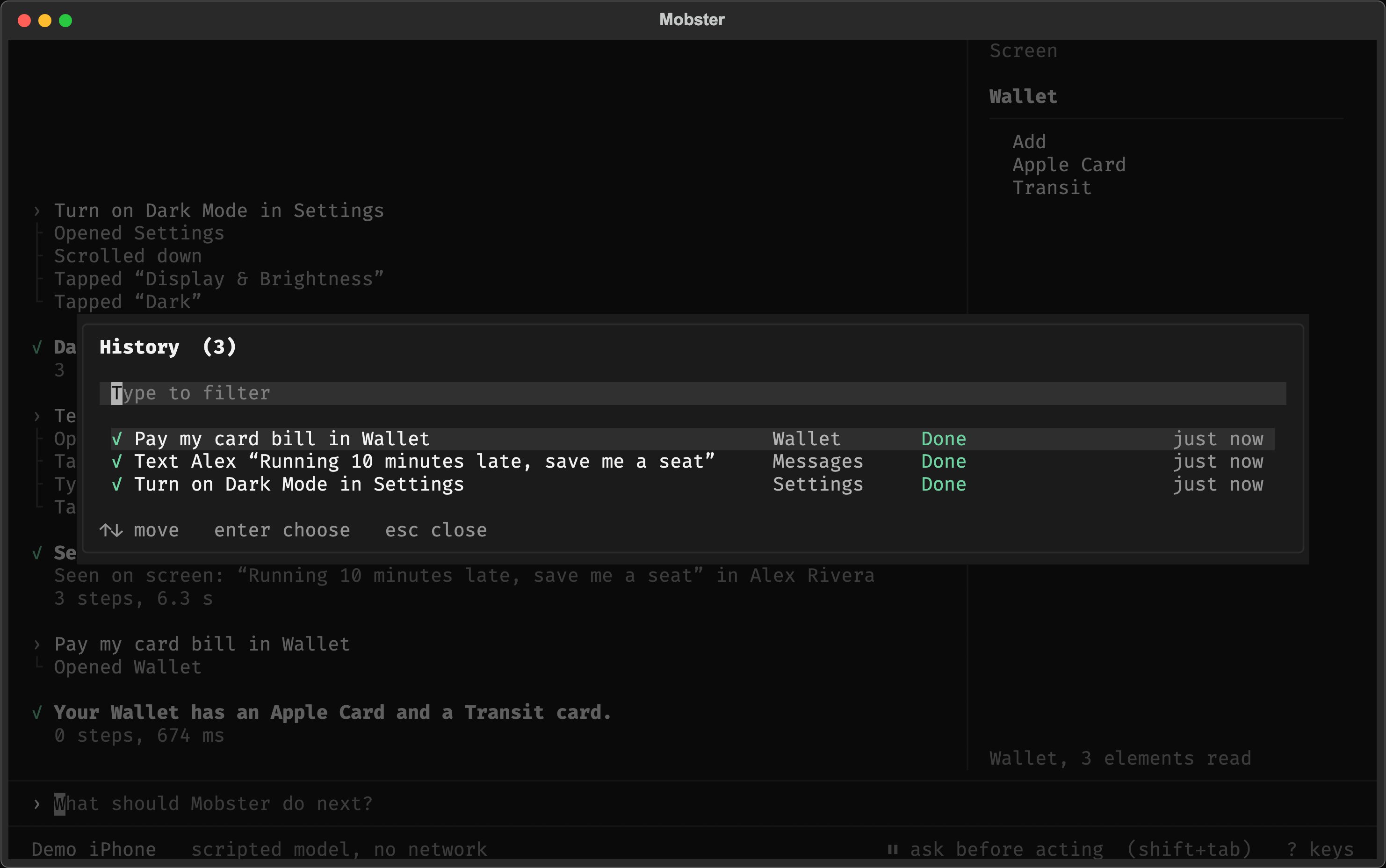
mobile_agent/.state/terminal.sqlite3 in a source checkout and ~/Library/Application Support/app.mobster.desktop/state/terminal.sqlite3 otherwise. It is separate from the journal of mobster serve and Mobster for Mac, so both can run at once. mobster run saves its tasks here too, and mobster history lists them. One terminal UI or mobster run has it open at a time: another one says so and does not start, and mobster run exits 3 without reaching the phone. mobster run --state-db PATH saves its task in another file instead. It keeps the last 100 finished tasks and every unfinished task. It holds your task text and what Mobster read on the screen, so keep it private. A task still running when its process ended (a crash, or a killed mobster run) is marked Interrupted the next time either starts, and is never resumed on its own.
When you quit, the UI prints a plain summary of the session’s tasks, so they stay in your terminal’s scrollback. A task still running stops at its next safe point, and the summary says how long it ran.
When there is no phone
If the helper app on your iPhone doesn’t answer, the status line showsNo iPhone yet, and the welcome screen shows setup steps. The UI rejects a task before it runs and shows the same steps. /devices runs the full doctor report. Device setup has the details.
Other terminals
The UI needs a terminal at least 80 columns wide and a truecolor terminal for the phone view. Every modern macOS terminal works (Terminal, iTerm2, Ghostty, kitty, WezTerm). In a pipe or script,mobster refuses to start the UI and points you to mobster run, which prints plain lines or JSON.
On a long approval card, press page up or page down to read the whole card. Each app it allows is named before you answer.