> ## Documentation Index
> Fetch the complete documentation index at: https://docs.mobster.dev/llms.txt
> Use this file to discover all available pages before exploring further.
# A tour of Mobster for Mac
> Where everything is in Mobster for Mac.
Mobster for Mac is one window: a sidebar on the left, the task page or a conversation in the middle, and your iPhone's screen on the right. The app has its own 1-minute tour too: Help › **Take the tour**.
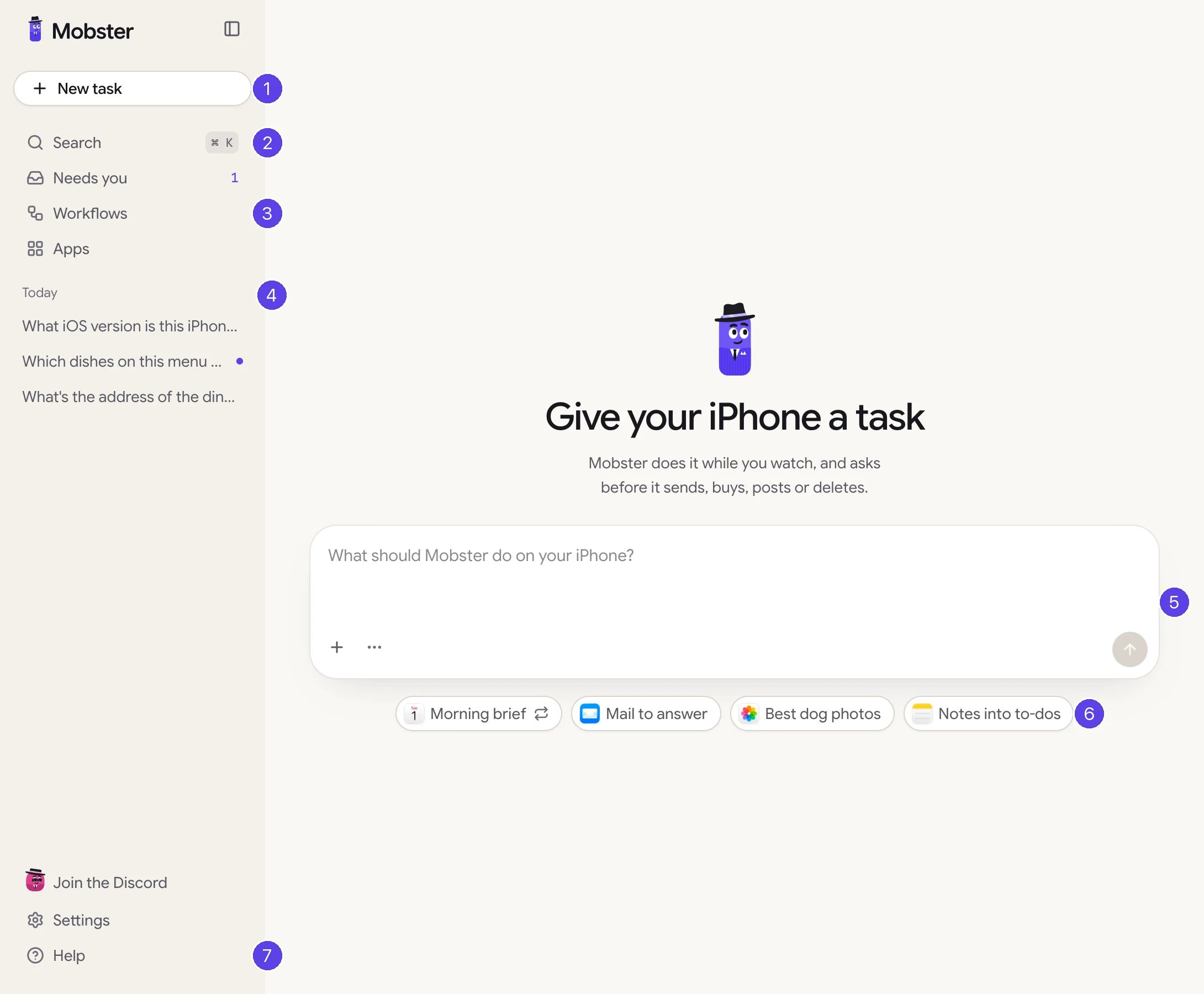
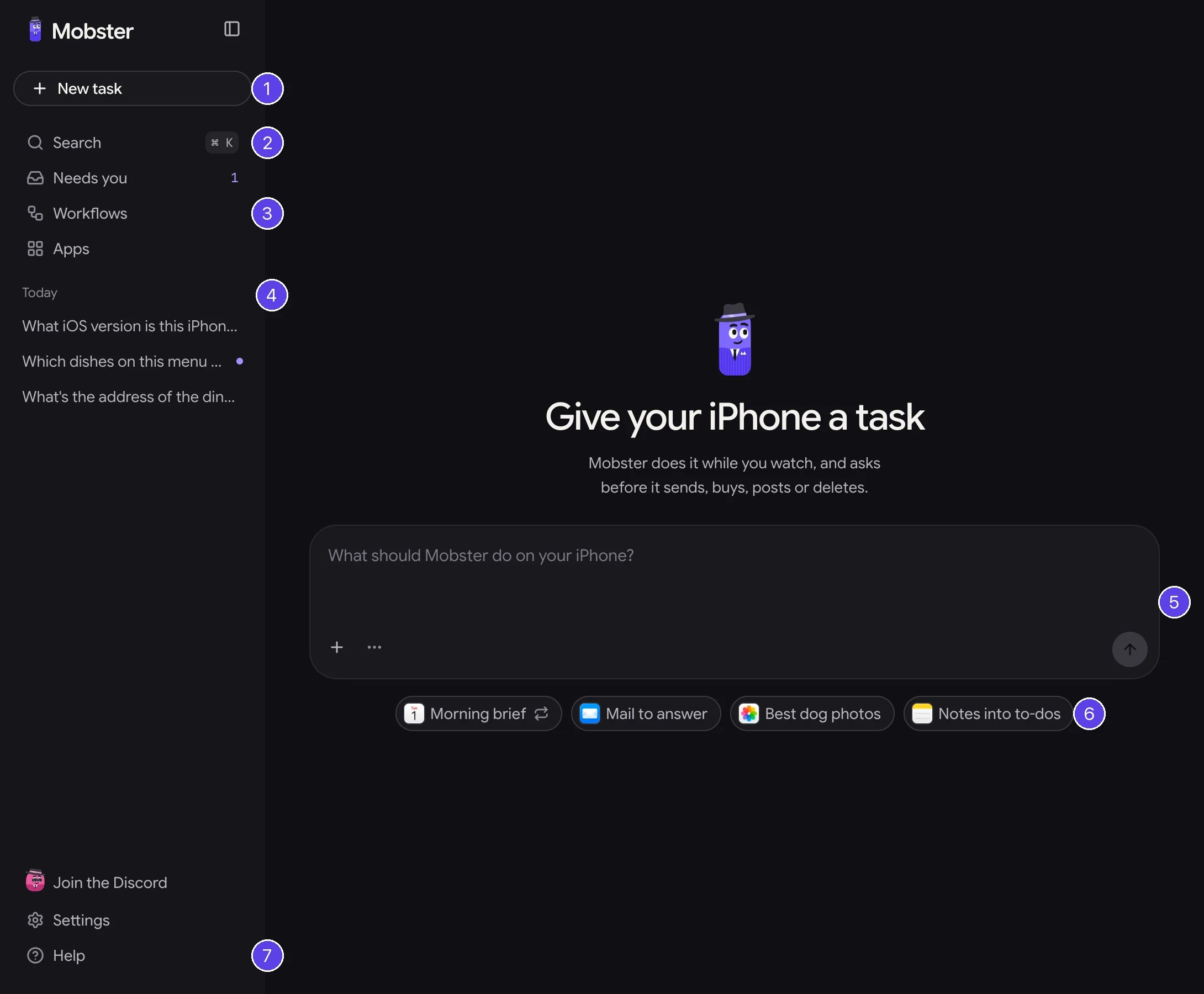 1. **New task** (⌘N) starts a new conversation.
2. **Search** (⌘K) finds conversations, tasks, workflows and apps.
3. **Workflows** (⌘2) and **Apps** (⌘3). **Needs you** shows above them while a task waits for you. ⌘1 goes back to the task page.
4. **Your conversations**, newest first, grouped by day. A dot says one is running, waiting for you, or worth a look.
5. **The task box.** Type a task. **+** attaches files or pins an app (typing `@` in the task pins one too), and **⋯** chooses the answer's format and when Mobster asks first.
6. **Starters** fill the task box with a task to try.
7. **Help** has [Send feedback](/feedback), the tour, help with your iPhone's setup, and support. **Settings** (⌘,) sits above it.
## Conversations
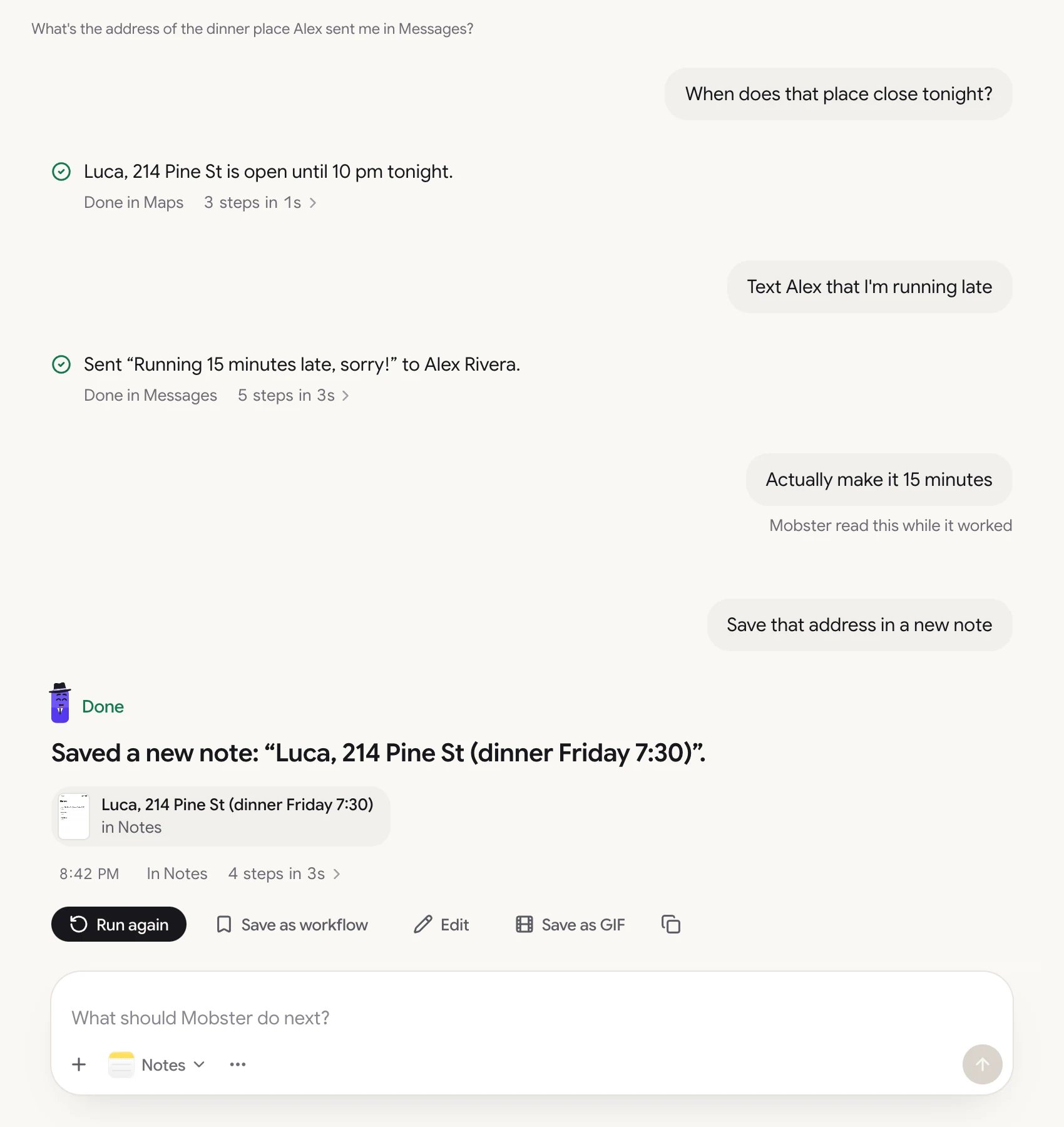
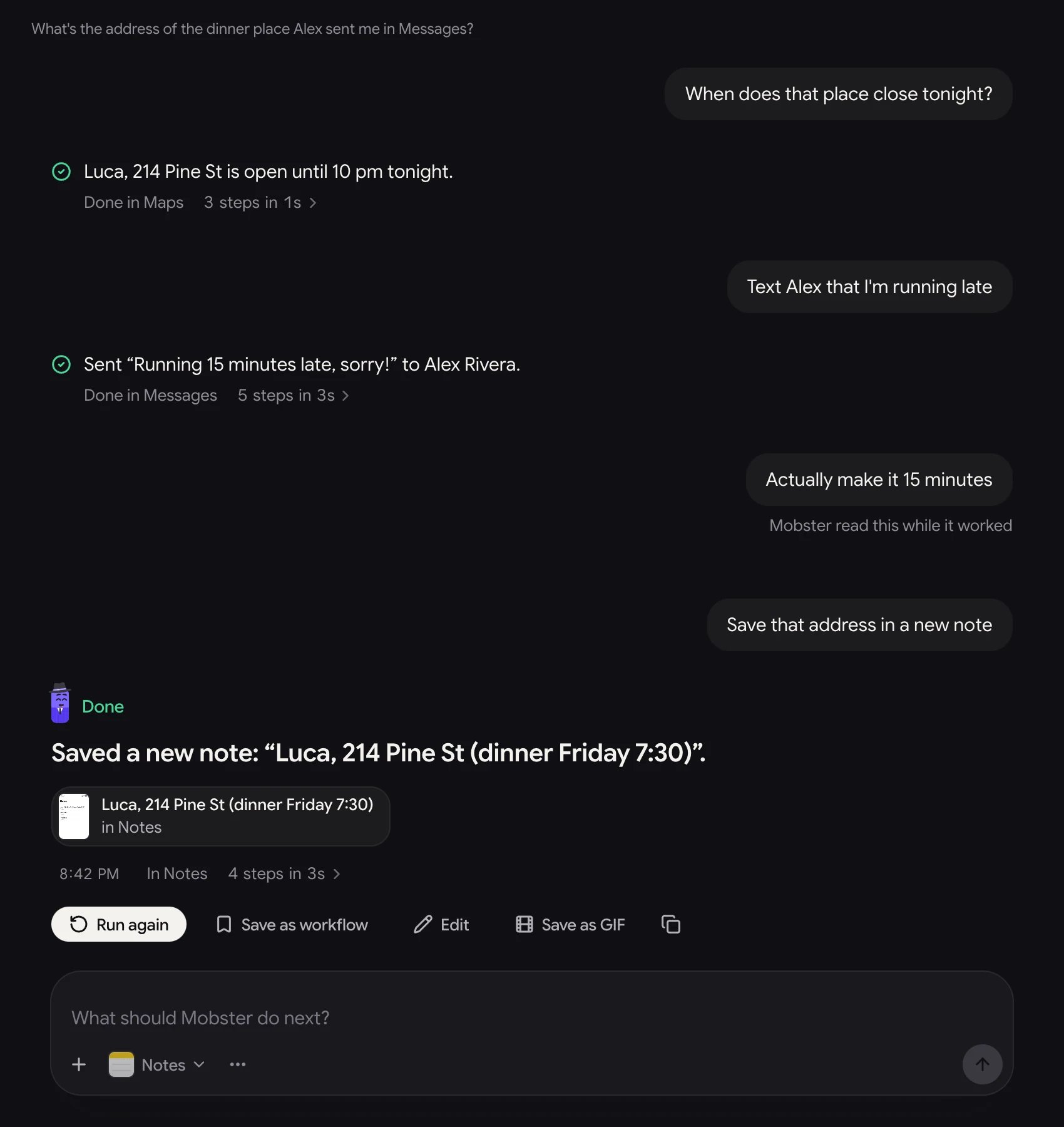
Each task starts a conversation. Mobster shows each step as it goes, and the result as an answer with the screen it came from. Follow up in the same box, and the next task knows what the last one found. [Conversations](/conversations) has the details.
1. **New task** (⌘N) starts a new conversation.
2. **Search** (⌘K) finds conversations, tasks, workflows and apps.
3. **Workflows** (⌘2) and **Apps** (⌘3). **Needs you** shows above them while a task waits for you. ⌘1 goes back to the task page.
4. **Your conversations**, newest first, grouped by day. A dot says one is running, waiting for you, or worth a look.
5. **The task box.** Type a task. **+** attaches files or pins an app (typing `@` in the task pins one too), and **⋯** chooses the answer's format and when Mobster asks first.
6. **Starters** fill the task box with a task to try.
7. **Help** has [Send feedback](/feedback), the tour, help with your iPhone's setup, and support. **Settings** (⌘,) sits above it.
## Conversations
Each task starts a conversation. Mobster shows each step as it goes, and the result as an answer with the screen it came from. Follow up in the same box, and the next task knows what the last one found. [Conversations](/conversations) has the details.
 ## Approvals and questions
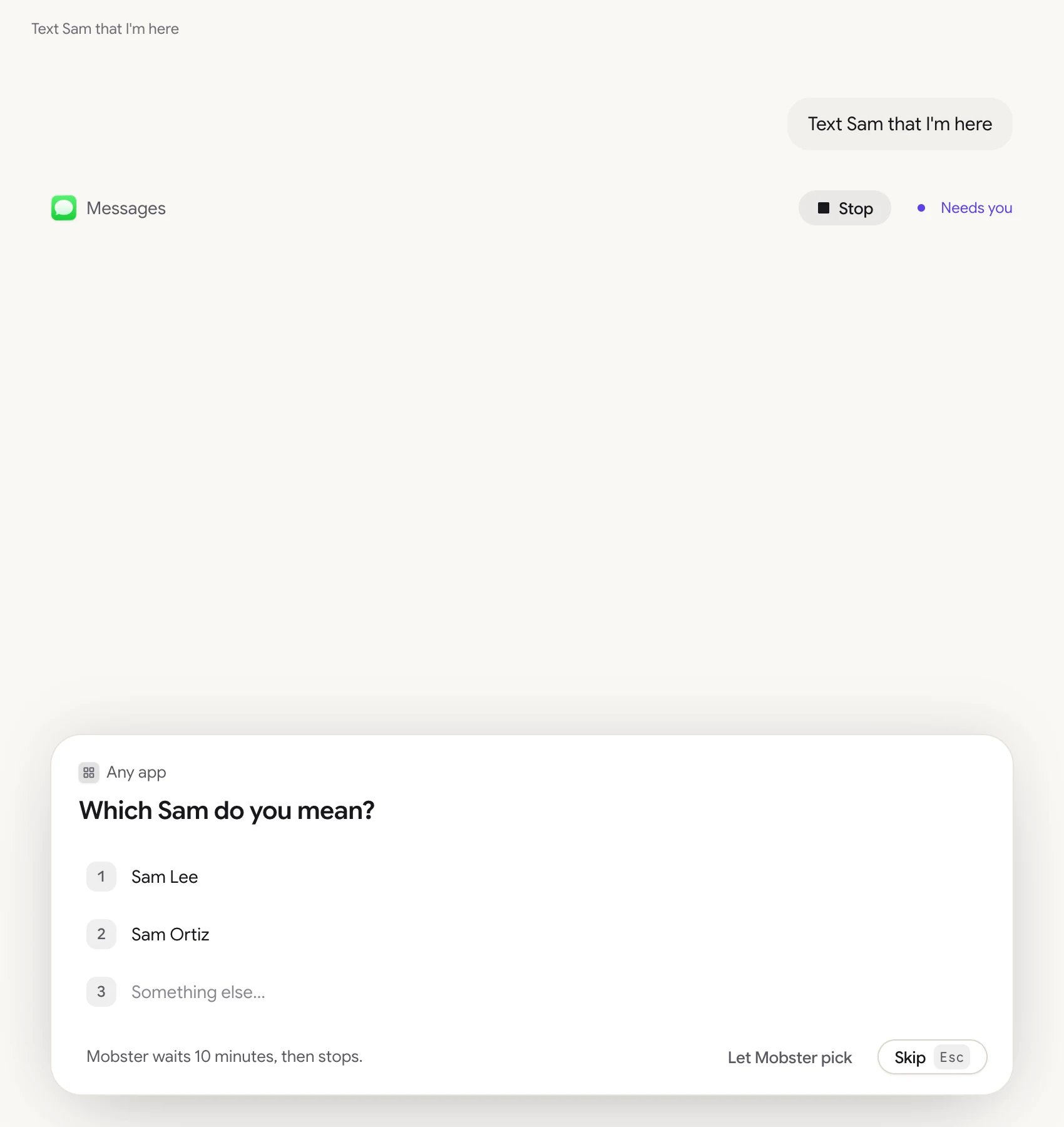
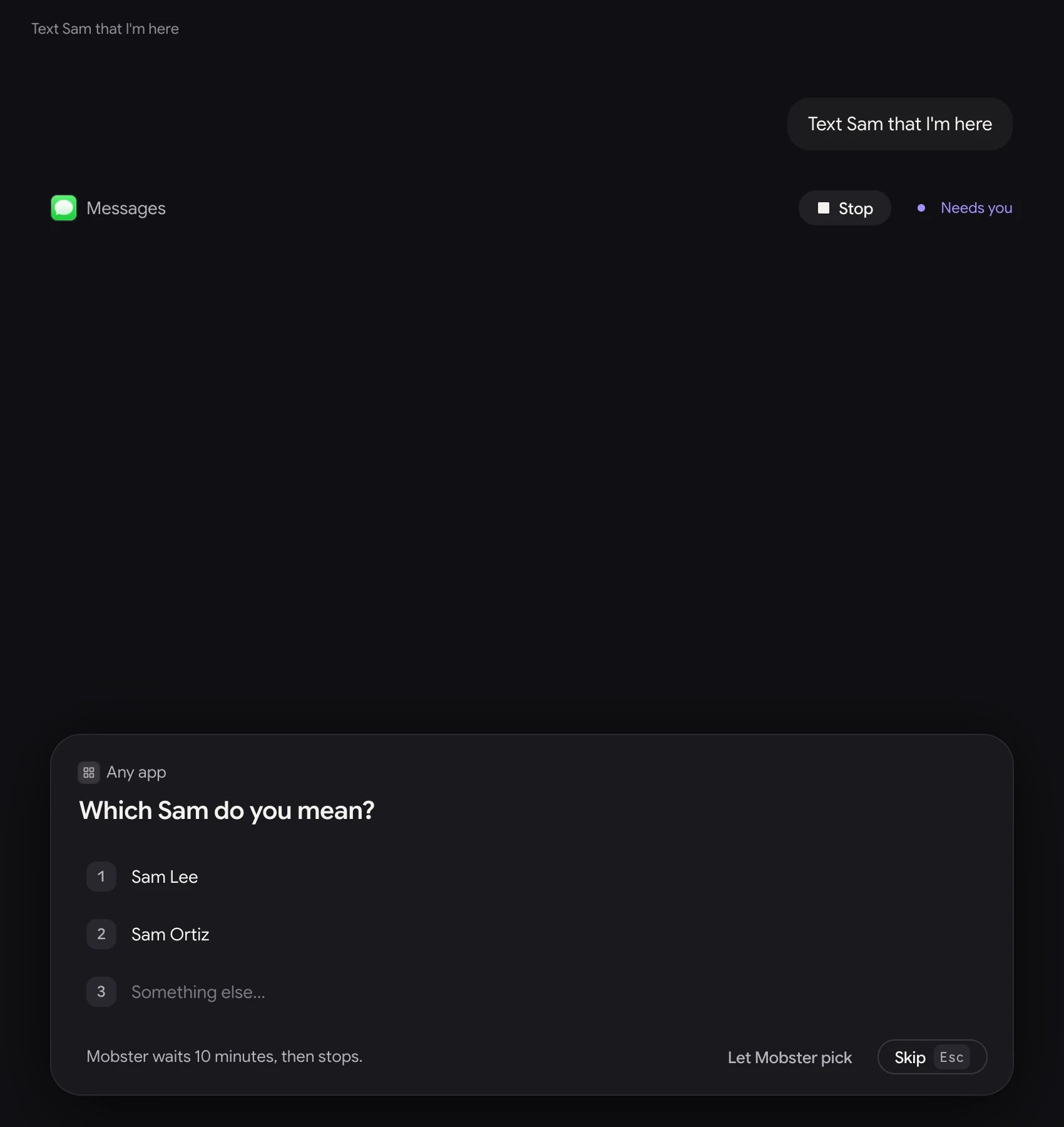
Before anything that sends, buys, posts or deletes, a card shows the exact action and text, with the act's own verb. The card takes the task box's place until you answer, so its **Say what to do instead** is where you change the plan. When Mobster presses a spot on the screen, **Show the screen** under the text shows that spot. When a task could mean two things, Mobster may ask you which one, with each choice as a button. [Approvals and safety](/safety) has the rules.
## Approvals and questions
Before anything that sends, buys, posts or deletes, a card shows the exact action and text, with the act's own verb. The card takes the task box's place until you answer, so its **Say what to do instead** is where you change the plan. When Mobster presses a spot on the screen, **Show the screen** under the text shows that spot. When a task could mean two things, Mobster may ask you which one, with each choice as a button. [Approvals and safety](/safety) has the rules.
 ## The phone pane
On the right, your iPhone's screen, live, while Mobster can see it. The phone's name at the top picks another phone when you have several, the hand button lets you tap and type on the phone yourself, the cap teaches Mobster a task you do once ([Teach Mobster a task](/capabilities#teach-mobster-a-task)), and the arrows give the screen more room. When the phone needs something, such as a refresh of Mobster's helper or an unlock, the pane says what to do and offers the one button that does it.
After you turn on Control, pressing Home keeps it on through a brief interruption. Input waits while the phone cannot answer. After 3 seconds away, Control turns off. Switching phones also turns Control off and closes the previous phone’s save form.
## Search
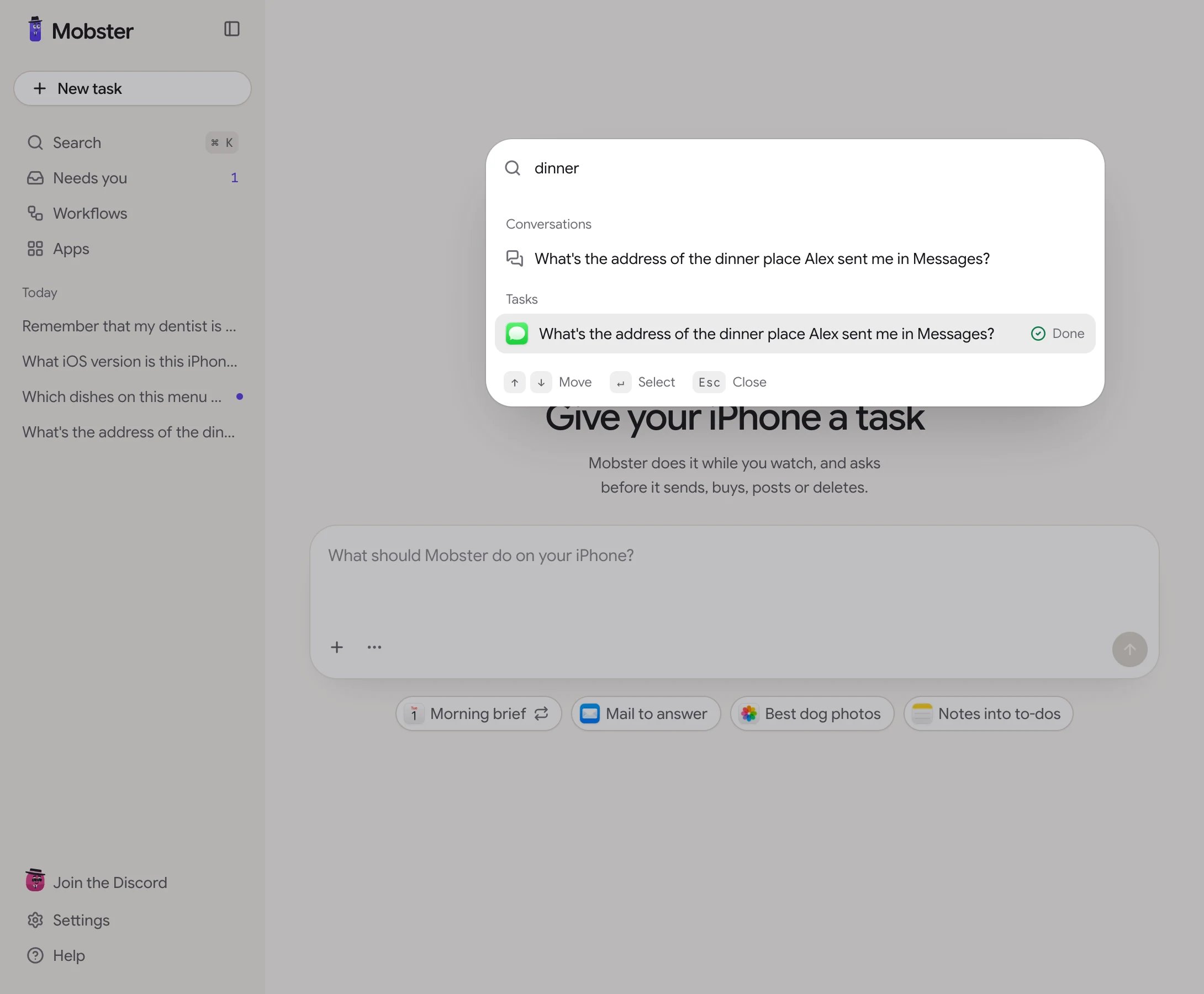
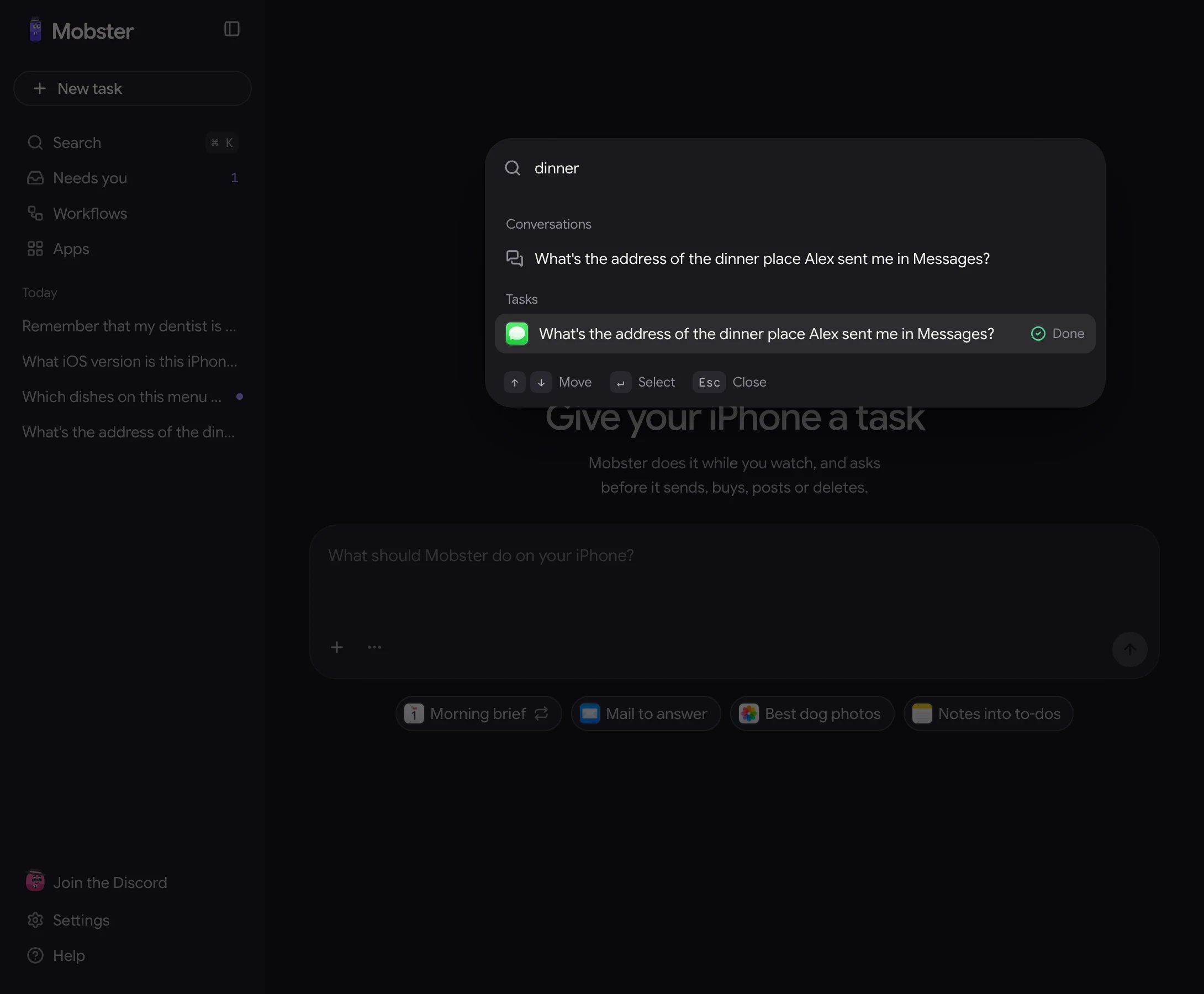
⌘K opens search over your conversations, tasks and apps. ↑ and ↓ move, Enter opens, Esc closes.
It also starts things. **New task**, **New workflow** and **Add a device** come first, so typing `new` or `add` goes straight to the page that does it.
## The phone pane
On the right, your iPhone's screen, live, while Mobster can see it. The phone's name at the top picks another phone when you have several, the hand button lets you tap and type on the phone yourself, the cap teaches Mobster a task you do once ([Teach Mobster a task](/capabilities#teach-mobster-a-task)), and the arrows give the screen more room. When the phone needs something, such as a refresh of Mobster's helper or an unlock, the pane says what to do and offers the one button that does it.
After you turn on Control, pressing Home keeps it on through a brief interruption. Input waits while the phone cannot answer. After 3 seconds away, Control turns off. Switching phones also turns Control off and closes the previous phone’s save form.
## Search
⌘K opens search over your conversations, tasks and apps. ↑ and ↓ move, Enter opens, Esc closes.
It also starts things. **New task**, **New workflow** and **Add a device** come first, so typing `new` or `add` goes straight to the page that does it.
 ## Your conversations and workflows
The sidebar lists your conversations, newest first, under Today, Yesterday, Previous 7 days and Older. It shows the newest 20, and **View all** opens ⌘K on every task. Each conversation's **More** menu has **Run workflow here…**, **Rename** and **Delete**.
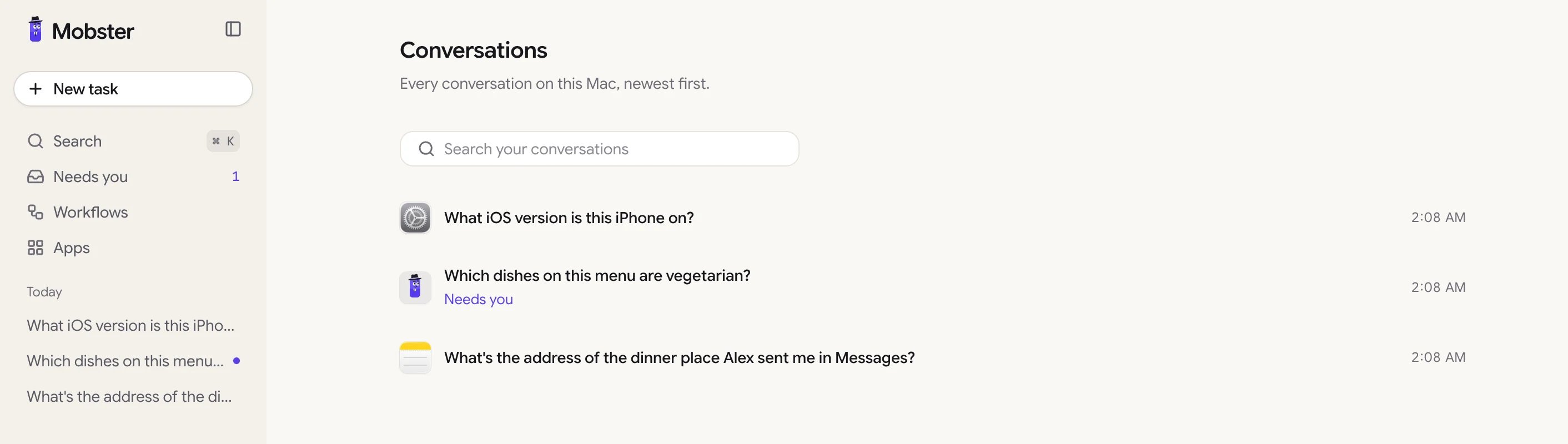
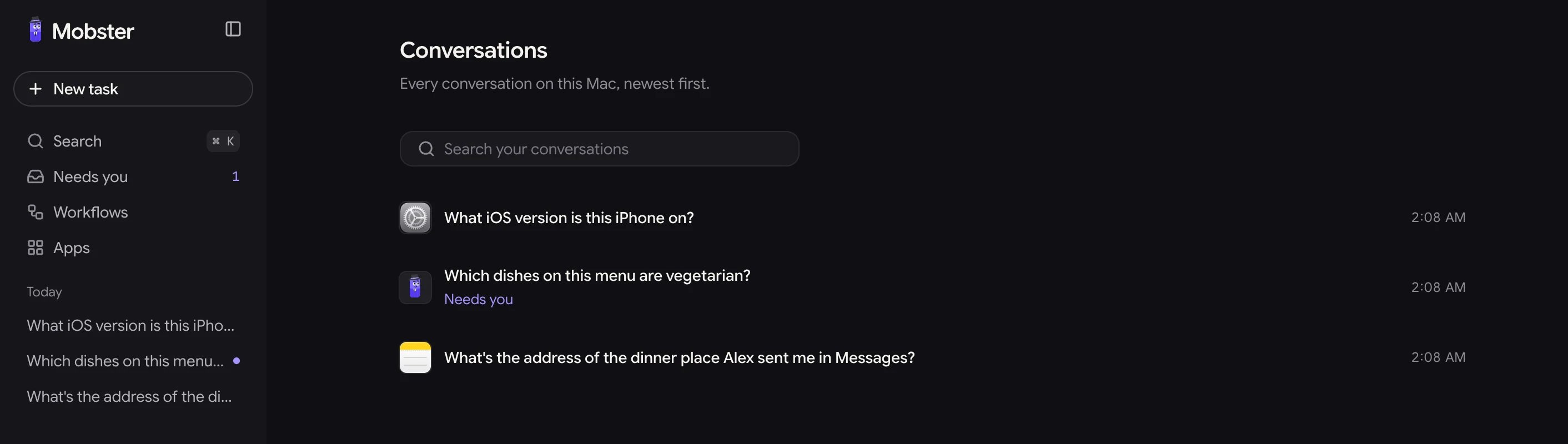
**All conversations**, in ⌘K, opens every conversation on this Mac, newest first, with a search box. Each row shows the app, the title, whether it's **Running** or **Needs you**, and when it last changed. **Show older conversations** loads the next 100.
## Your conversations and workflows
The sidebar lists your conversations, newest first, under Today, Yesterday, Previous 7 days and Older. It shows the newest 20, and **View all** opens ⌘K on every task. Each conversation's **More** menu has **Run workflow here…**, **Rename** and **Delete**.
**All conversations**, in ⌘K, opens every conversation on this Mac, newest first, with a search box. Each row shows the app, the title, whether it's **Running** or **Needs you**, and when it last changed. **Show older conversations** loads the next 100.
 **Workflows** (⌘2) holds conversations you start again. A workflow is plain-text steps with blanks for what changes, such as `Scroll {topic} Reels for {10} minutes and tell me what you learned`. You write the steps the way you'd type a task, and the agent works out the taps.
* **Save as workflow** (the bookmark icon), under an answer you liked, opens a new workflow's page and drafts the name and the steps there from that conversation.
* **Say what it does**, at the top of the Workflows page, and **Make it** opens a new workflow's page with the steps Mobster drafts from your words, to read and save. **Teach it** opens your iPhone to do the task once while Mobster watches, and the starters under it are for apps your iPhone has. **New workflow** starts from an empty one.
* **Now**, above your workflows when there is any, lists what is going and what waits for you: a workflow running its steps (**Stop**), an approval (**Approve** or **Decline** in place, or **Review** on its step when you can change it first or should see the screen), and a workflow whose last run failed, with why.
* Each row shows its last 10 runs as dots, newest at the right: green done, a violet ring for one that wants a look, coral for one that couldn't finish, a grey ring for a stop or a skip. Point at a dot for its time. The rows that run next come first.
* **Run** asks for the blanks, then starts a new conversation. A workflow also runs from ⌘K, and from **Run it** in its editor: on a schedule, by webhook or from a shortcut.
* A workflow's page is a canvas: double-click or type to add a step (a phone task, a wait, a send, a connector's tool, a branch, a loop and more), and drag from a step's output to another step to join them. **Run** tests it there and lights each step as it goes. The list button on its row shows each run, with **Stop** and **Export CSV** ([Build a workflow on its canvas](/workflows)).
* **Learned steps**, under your workflows, lists what Mobster repeats with no model: tasks you taught and tasks it kept after they finished. Each has **Run**, **Rename** and **Forget**.
[Workflows and schedules](/schedules) has the details.
## Share a task
**Save as GIF**, in the **⋯** at the end of the icons under a finished task's answer, saves it to Downloads as a captioned GIF you can post: the task as you typed it, each step's screen with what Mobster did, the approval if it asked, and the result. It matches the app's appearance, light or dark, and stays under X's 15 MB limit. The GIF shows every screen of the task and stays on your Mac until you share it, so look at it first. Screens after a sign-in code are left out. To blur text fields and messages, or to save an MP4, use [`mobster export`](/reference/cli#mobster-export) with `--redact` or `--mp4`.
## Settings
Settings (⌘,) is a page, with its sections on the left and **Back** to where you were. It holds Models and your spending limits, Safety, Connectors, Plugins, Memory, Voice, Remote, Phones, Profiles, your account, Help and support, Advanced, and For developers. [Settings](/mac/settings) goes through each one.
This documentation is built and hosted on [Mintlify](https://mintlify.com), a developer documentation platform.
**Workflows** (⌘2) holds conversations you start again. A workflow is plain-text steps with blanks for what changes, such as `Scroll {topic} Reels for {10} minutes and tell me what you learned`. You write the steps the way you'd type a task, and the agent works out the taps.
* **Save as workflow** (the bookmark icon), under an answer you liked, opens a new workflow's page and drafts the name and the steps there from that conversation.
* **Say what it does**, at the top of the Workflows page, and **Make it** opens a new workflow's page with the steps Mobster drafts from your words, to read and save. **Teach it** opens your iPhone to do the task once while Mobster watches, and the starters under it are for apps your iPhone has. **New workflow** starts from an empty one.
* **Now**, above your workflows when there is any, lists what is going and what waits for you: a workflow running its steps (**Stop**), an approval (**Approve** or **Decline** in place, or **Review** on its step when you can change it first or should see the screen), and a workflow whose last run failed, with why.
* Each row shows its last 10 runs as dots, newest at the right: green done, a violet ring for one that wants a look, coral for one that couldn't finish, a grey ring for a stop or a skip. Point at a dot for its time. The rows that run next come first.
* **Run** asks for the blanks, then starts a new conversation. A workflow also runs from ⌘K, and from **Run it** in its editor: on a schedule, by webhook or from a shortcut.
* A workflow's page is a canvas: double-click or type to add a step (a phone task, a wait, a send, a connector's tool, a branch, a loop and more), and drag from a step's output to another step to join them. **Run** tests it there and lights each step as it goes. The list button on its row shows each run, with **Stop** and **Export CSV** ([Build a workflow on its canvas](/workflows)).
* **Learned steps**, under your workflows, lists what Mobster repeats with no model: tasks you taught and tasks it kept after they finished. Each has **Run**, **Rename** and **Forget**.
[Workflows and schedules](/schedules) has the details.
## Share a task
**Save as GIF**, in the **⋯** at the end of the icons under a finished task's answer, saves it to Downloads as a captioned GIF you can post: the task as you typed it, each step's screen with what Mobster did, the approval if it asked, and the result. It matches the app's appearance, light or dark, and stays under X's 15 MB limit. The GIF shows every screen of the task and stays on your Mac until you share it, so look at it first. Screens after a sign-in code are left out. To blur text fields and messages, or to save an MP4, use [`mobster export`](/reference/cli#mobster-export) with `--redact` or `--mp4`.
## Settings
Settings (⌘,) is a page, with its sections on the left and **Back** to where you were. It holds Models and your spending limits, Safety, Connectors, Plugins, Memory, Voice, Remote, Phones, Profiles, your account, Help and support, Advanced, and For developers. [Settings](/mac/settings) goes through each one.
This documentation is built and hosted on [Mintlify](https://mintlify.com), a developer documentation platform.